
Setting Up SSH Connection Between Two Ubuntu Containers in Docker

This project focuses on setting up an SSH (Secure Shell) connection between two Ubuntu containers running within Docker
SSH is a protocol that allows encrypted communication between systems, ensuring data confidentiality, integrity, and authenticity. By configuring one container as an SSH server and the other as an SSH client, this setup demonstrates how secure communication between two Docker containers can be achieved using password based authentication
Objective:
The objective of this project is to demonstrate how to configure and establish a secure SSH connection between two Ubuntu containers in Docker, enabling encrypted communication using password based authentication
Requirements:
Docker Desktop installed and running on the host machine to enable the creation and management of Docker containers
Basic Command Line Knowledge: familiarity with terminal commands for Docker and Linux systems
Internet Access
Implementation Process
Step 1:
Pull the latest Ubuntu image from Docker Hub using the following command:
docker pull ubuntu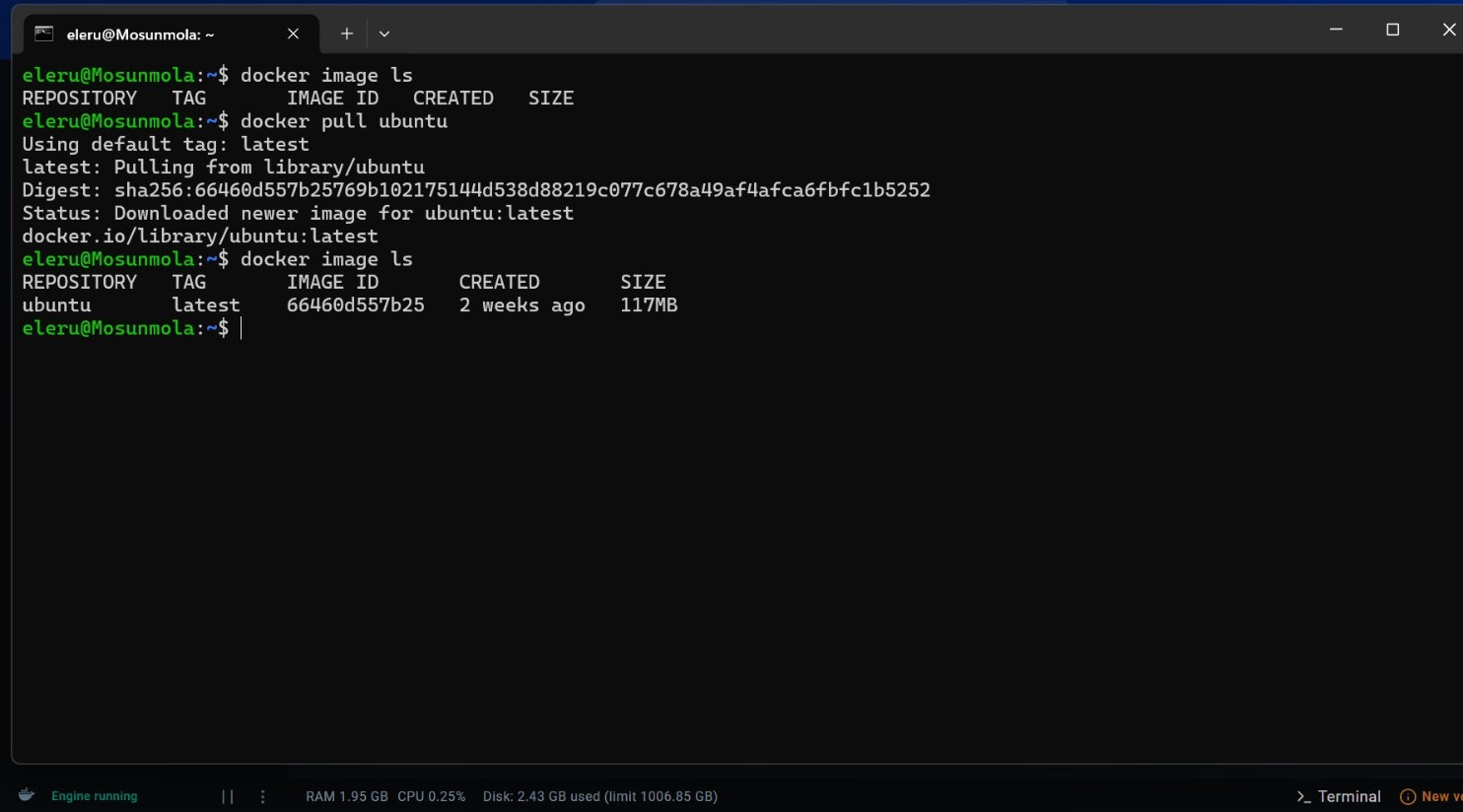
Create a new folder for the project using the following command:
mkdir ubuntu-containers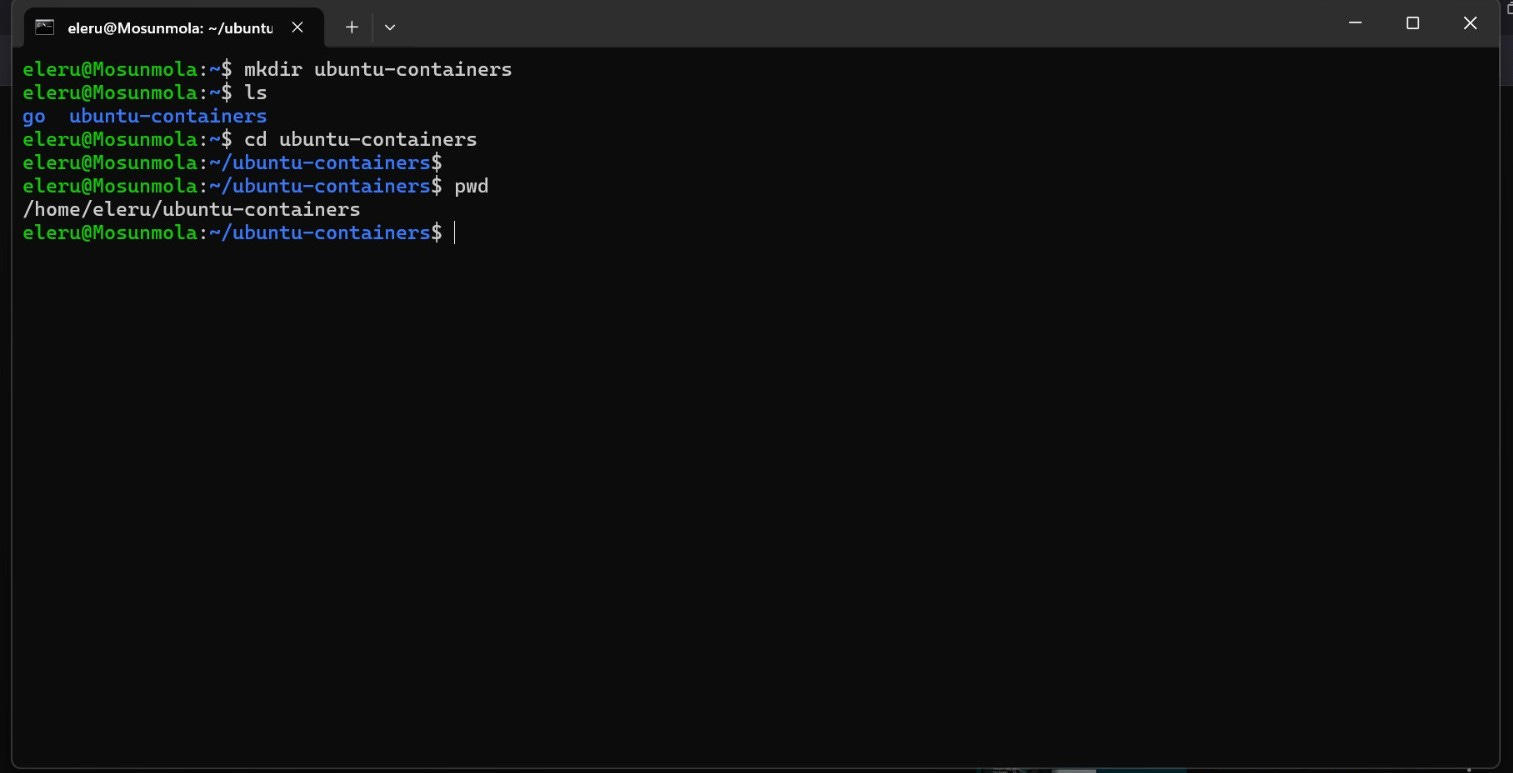
Step 2:
Create and name the first container ‘container1’ running it in an interactive mode:
docker run -it --name container1 ubuntuInstall the OpenSSH server package in container1. This enables the container to function as an SSH server, allowing it to accept incoming SSH connections. The package includes all necessary components for running an SSH server:
apt-get update
apt-get install openssh-server


Step 3:
Edit the SSH configuration file to allow connections. To do this, install the command-line text editor ‘nano’ using the following command:
apt-get install nano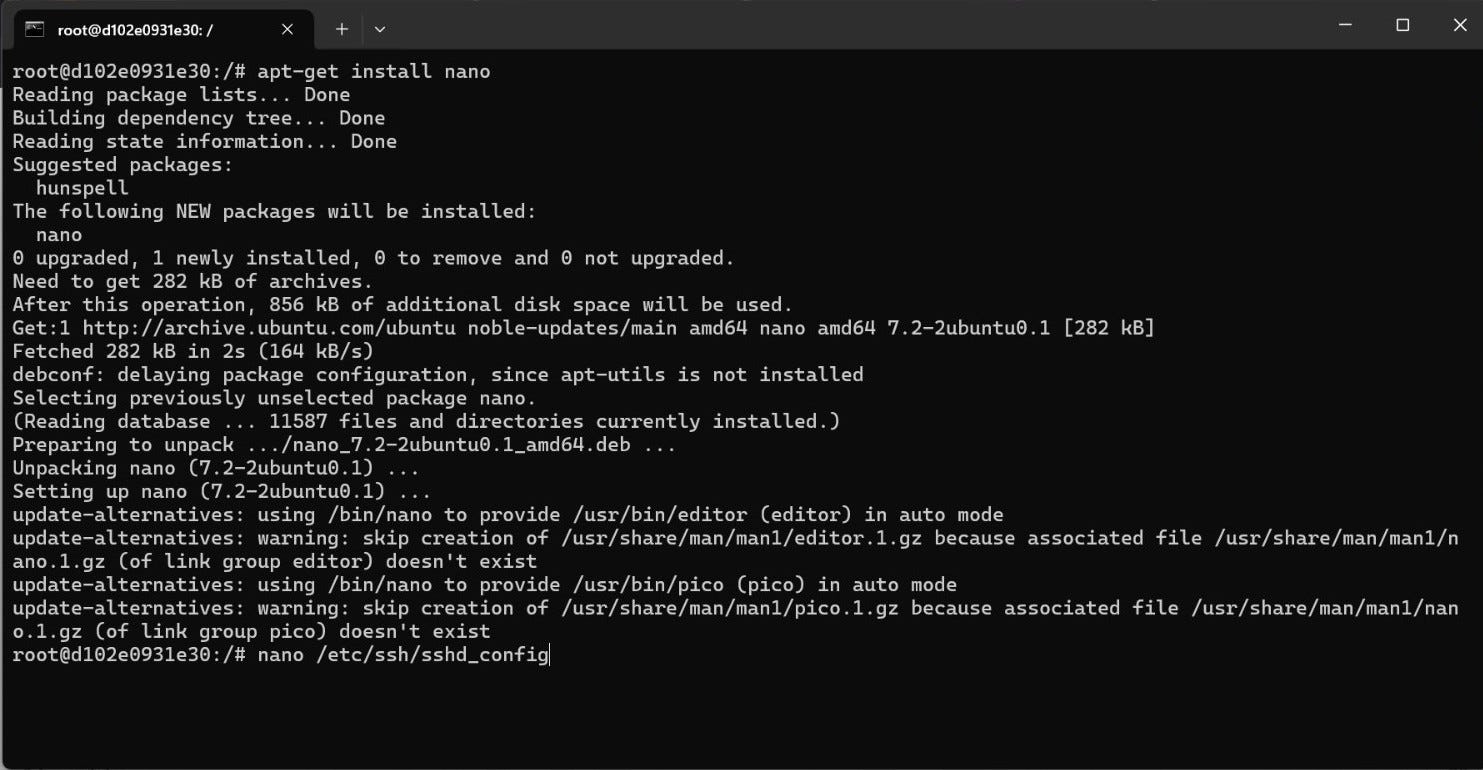
Use the following command to open and edit the SSH configuration file:
nano /etc/ssh/sshd_configIn the configuration file, locate Authentication section. Uncomment the ‘PermitRootLogin’ by removing the ‘#” character at beginning of the line. Then, delete ‘prohibit- password’ and replace it with ‘yes’. Save and exit the file


Start the SSH service in container1:
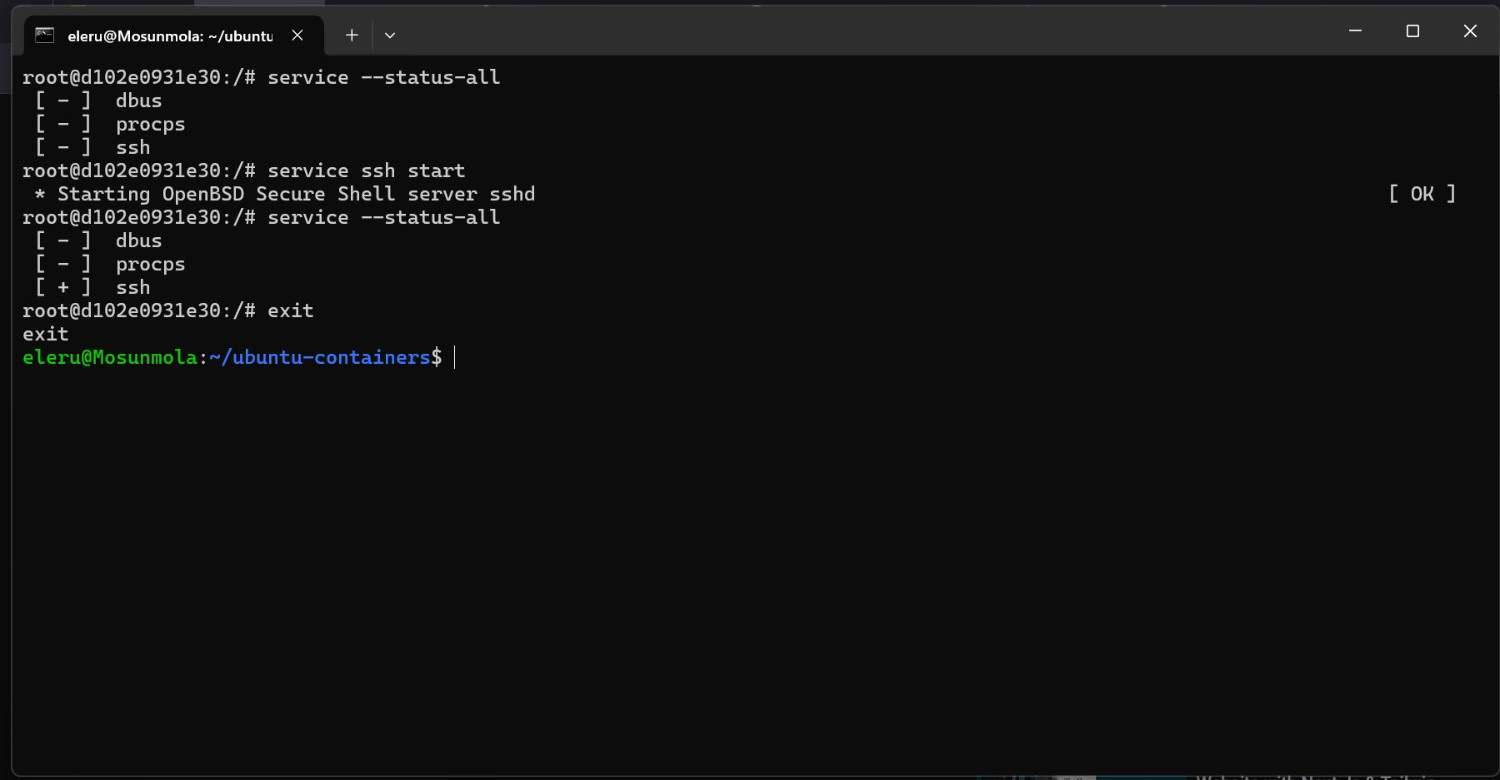
Step 4:
Create and run the second container ‘container2’ in interactive mode using the following command:
docker run -it --name container2 ubuntuIn container2, install the OpenSSH client package. This allows the container to function as an SSH client and initiate outgoing SSH connections. The package contains the necessary tools required to connect to an SSH server:
apt-get update
apt-get install openssh-client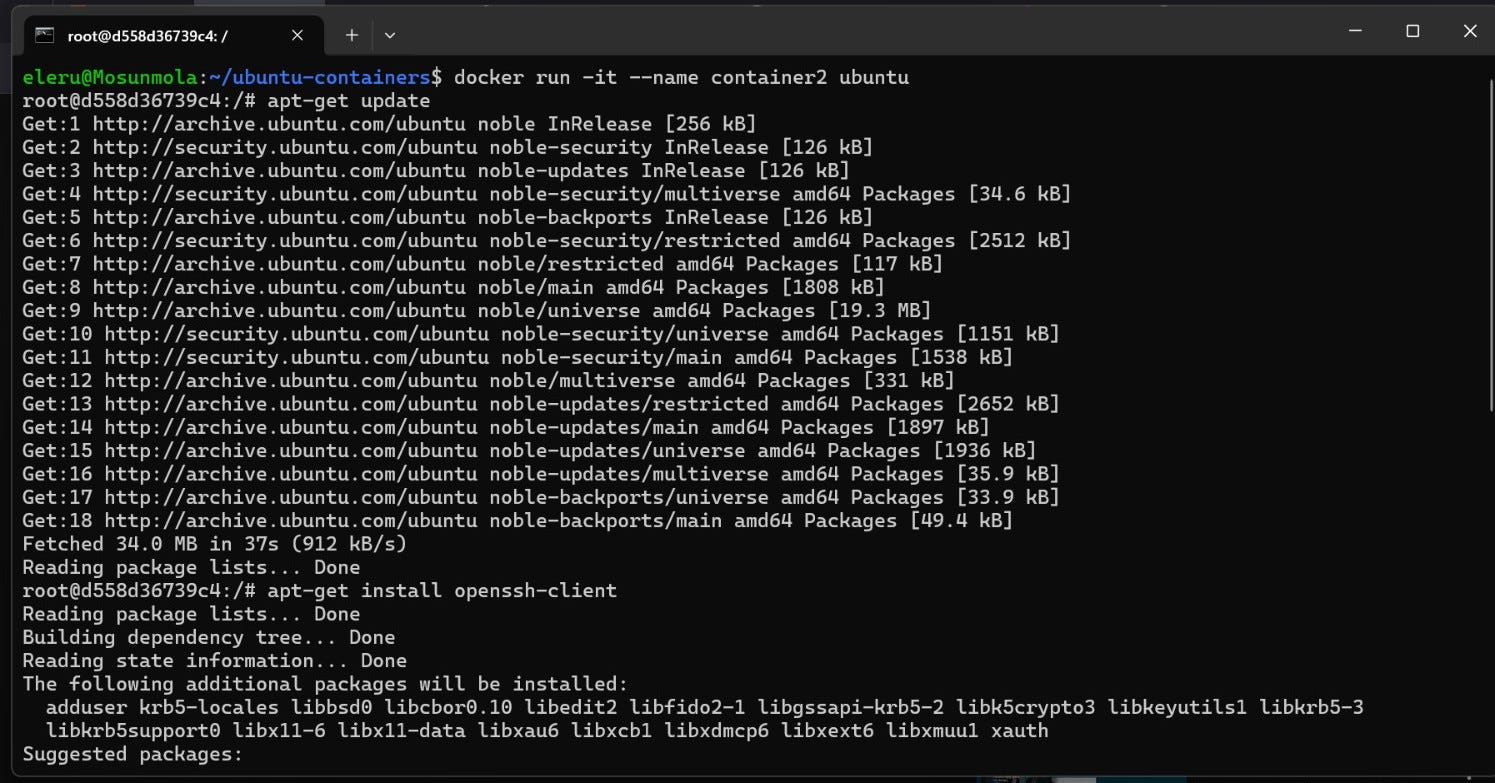
Exit container2 and start container1 using the following command:
docker start container1The following command will allow to execute Bash commands inside container1:
docker exec -it container1 bashRetrieve the root user’s password hash in container1 using the following command:
cat /etc/shadow | grep rootConfigure the root password inside container1 to enable password based SSH authentication using the following command:
passwd rootTo connect to container1 from container2 via SSH, retrieve container1’s IP address using the following command:
docker inspect container1 | grep IPAddress


Step 5:
Start container2 using the following command:
docker start container2Run the following command to execute Bash commands inside container2:
docker exec -it container2 bashConnect to container1 via SSH using its IP address by running the following command inside container2:
ssh root@172.17.0.2Answer ‘yes’ when prompted, then authenticate using the root user password previously set. A successful SSH connection is established afterwards


Key Takeaways:
Improved Security: by setting up an SSH connection between the two containers, a secure and encrypted communication channel is established. This ensures confidentiality, integrity, and authenticity of the transmitted data, helping protect the application from unauthorized access and potential breaches
Simplified Infrastructure Management: Docker simplifies the process of managing and deploying containers, reducing complexity and time required to handle application infrastructure. This ease of management supports faster development, testing, and deployment cycles
Team Collaboration: this project setup allows multiple team members to work on the same application simultaneously. Each member can use a separate container that communicates securely with others, improving productivity and collaboration. Team members can work independently while sharing their work securely and efficiently
Scalability: containers are lightweight and can be scaled up or down quickly to match changing application demands. Docker enables rapid provisioning of containers to handle increased load and scaling down when demand drops, optimizing resource usage and reducing cost
Portability: Docker containers are highly portable, enabling easy movement between different environments and cloud platforms. This reduces the risk of dependency conflicts and simplifies deployment across various stages of development and production